
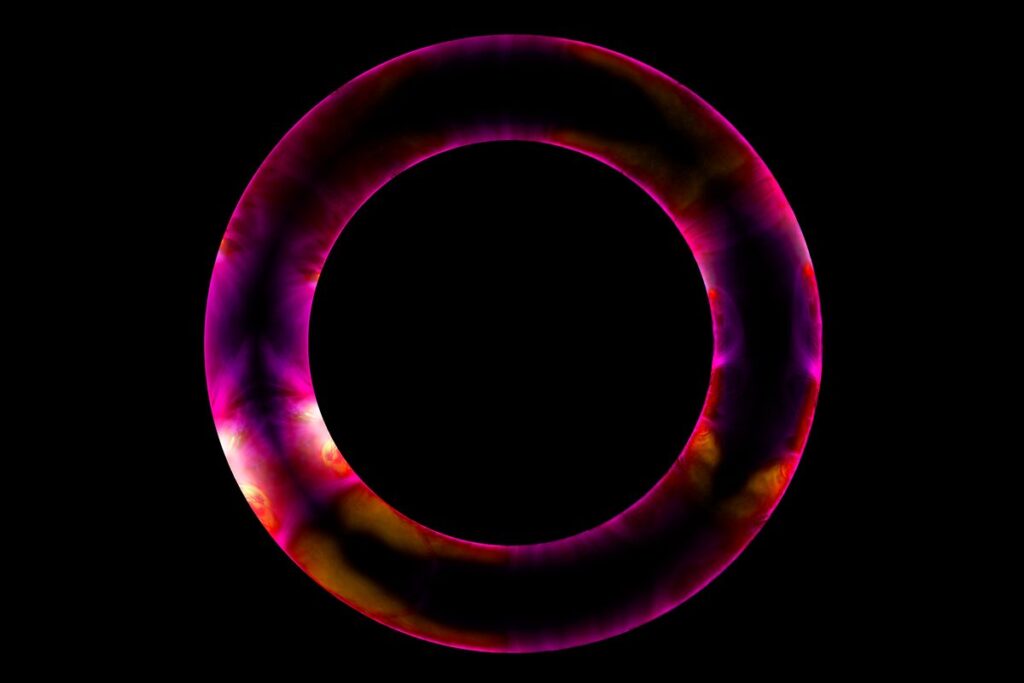
The Sun’s glowing colours and varying ionisation levels in images from NASA’s Solar Dynamics Observatory (SDO) have an unexpected visual cousin: the neon lights of the Las Vegas Strip.
The resemblance is more than cosmetic. In both, low-pressure gas glows when energised.
Around the Sun, that comes from intense heat and radiation; inside a neon tube, it’s from an electric current.
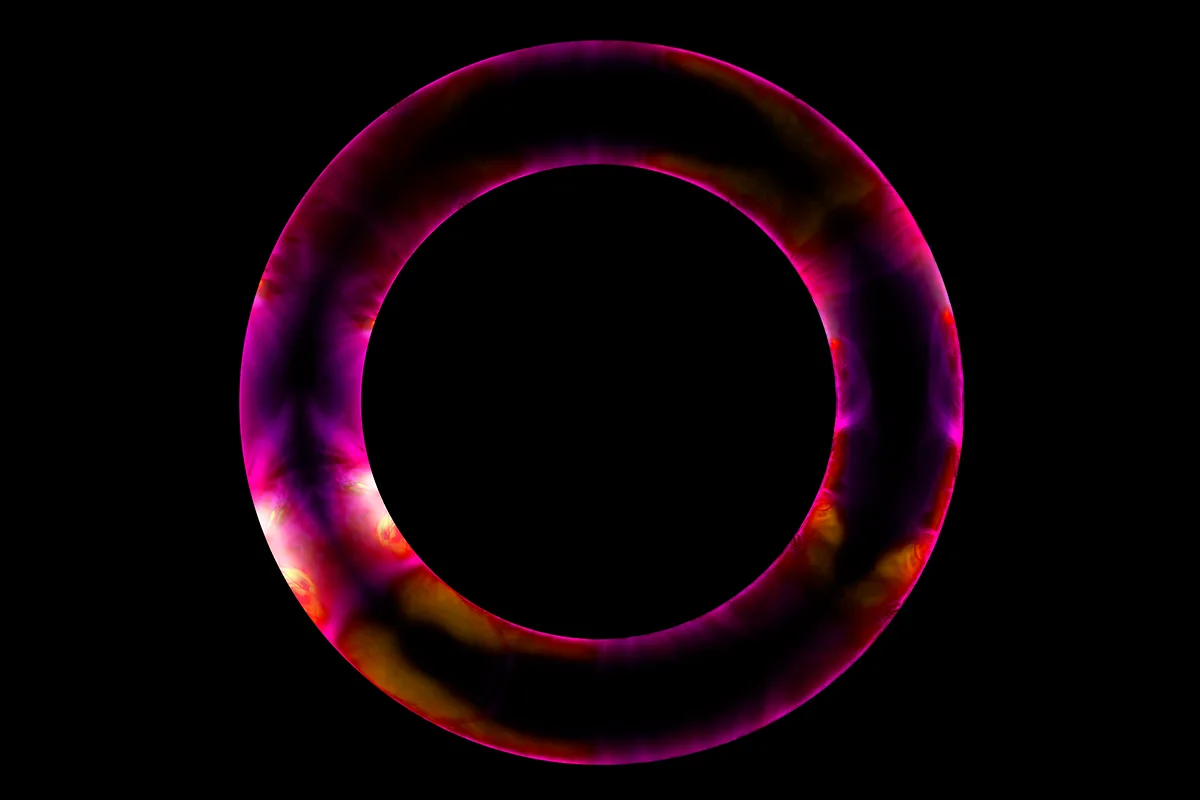 Neon Sun, created by Peter Ward
It’s the same physics that lights up emission nebulae, where ultraviolet radiation from hot O-type stars energises the surrounding gas to gleam in space.
Intrigued by the parallel, I created ‘Neon Sun’, which re-imagines our star as a glowing neon tube.
Here’s how I created it.
 Credit: Enhanced Image by Gerald Eichstädt and Sean Doran (CC BY-NC-SA) based on images provided Courtesy of NASA/JPL-Caltech/SwRI/MSSS
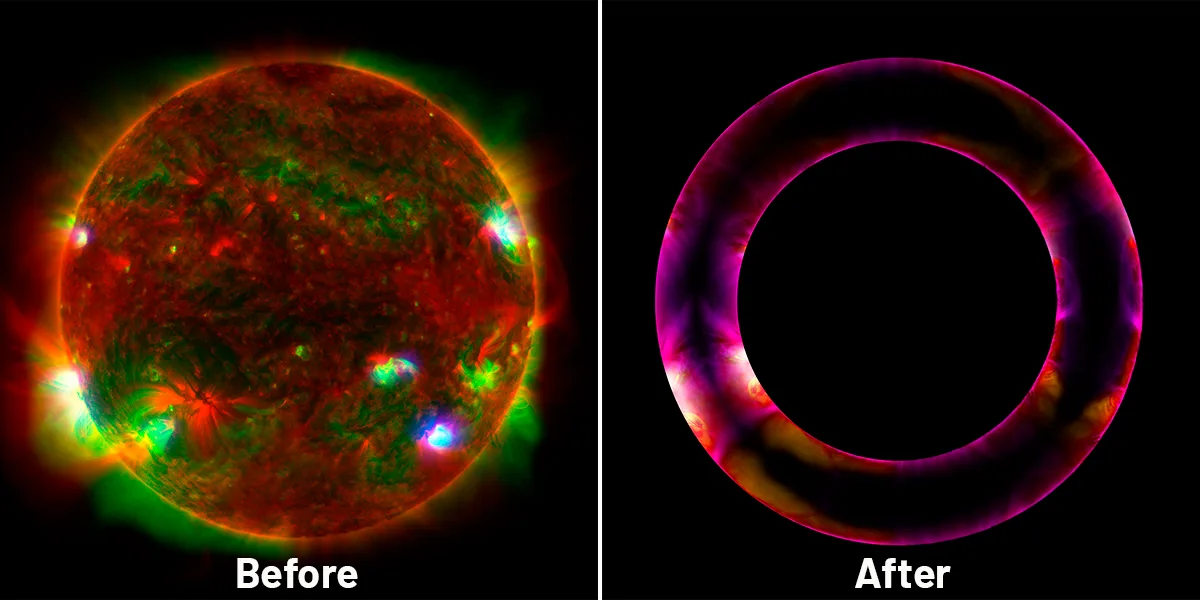 Follow our step-by-step guide to learn how to download images from NASA’s Solar Dynamics Observatory (left) and use Photoshop to turn them into extraordinary, surreal and thought-provoking ‘neon tube’ works of art, like Peter’s award-winning image (right). Credit: NASA/SDO, Peter Ward
Get the NASA solar data
You can download a vast range of free SDO images via the Solar Dynamics Observatory website.
To find them, go to the site’s Data tab, select ‘AIA/HMI Browse Data’ and click ‘Frames Download’ to get full-resolution 4,096-pixel images in multiple wavelengths.
There’s no single ‘correct’ image to choose, but multispectral frames with interesting structure, contrast and colour variation will produce the most engaging results.
For this walkthrough, we used an image labelled PIA25628_large, which you can see below.
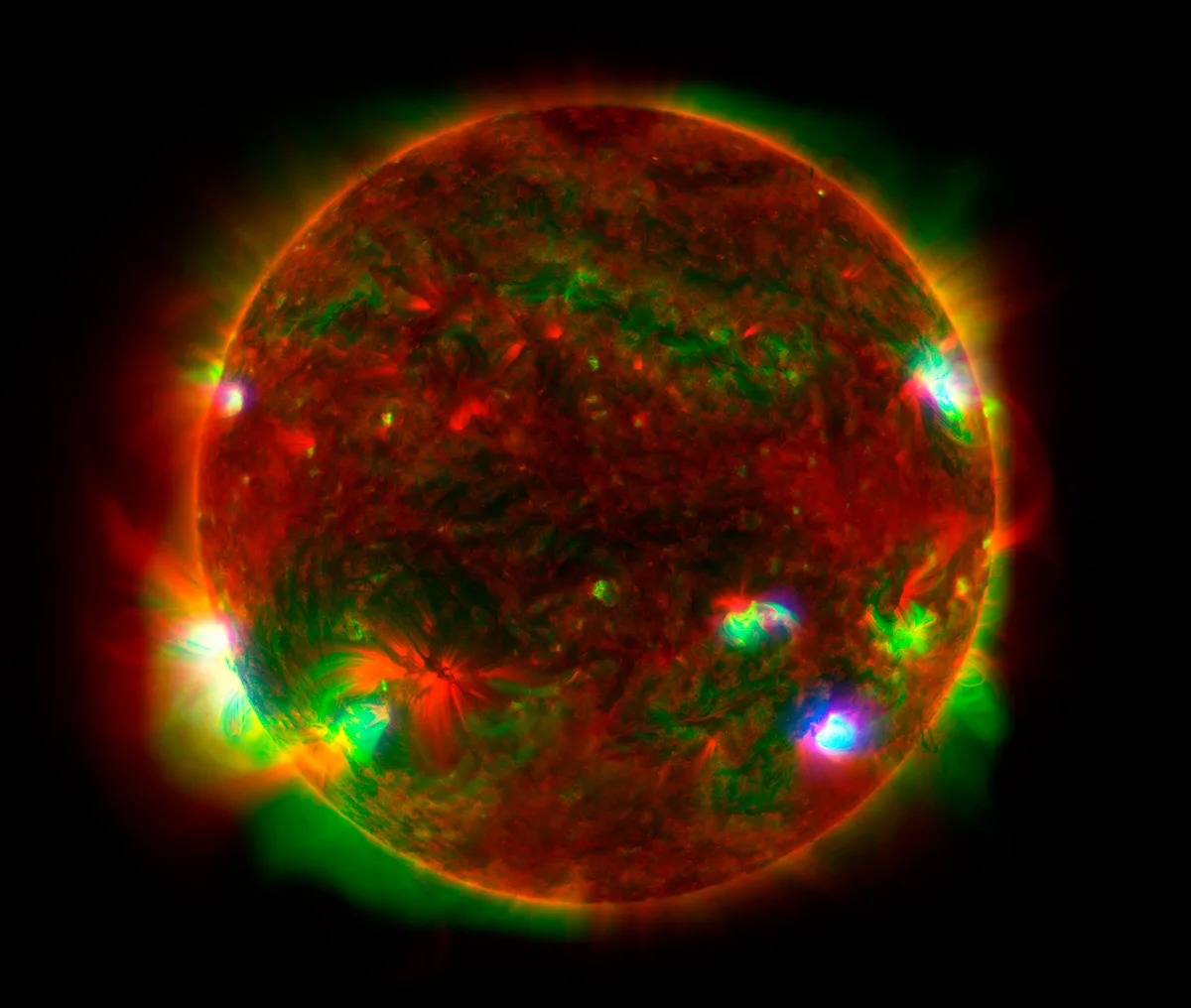 A view of the Sun captured by NASA’s Solar Dynamics Observatory. Credit: NASA/SDO
Extend your canvas
SDO images are tightly cropped around the Sun and often include labels that need to be removed.
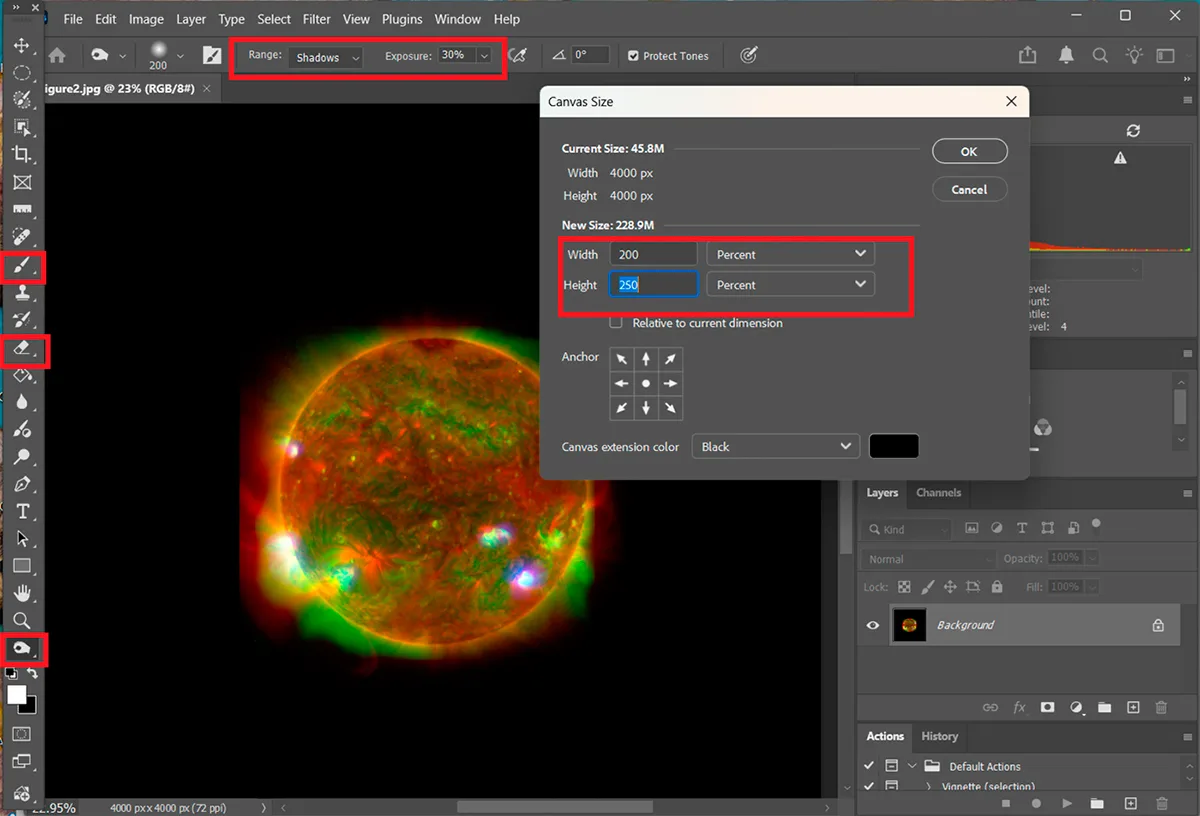
To create working space for the transformations to come, first open your image in Photoshop and click Image > Canvas Size (see image below).
Extend the canvas around 200%, filling the new area with black (RGB 0,0,0).
If your image has labels or overlays, remove them using the Brush, Eraser or Burn tools (highlighted).
Extending the canvas may reveal sharp ‘cut-off’ points that create odd straight edges in your processed data (see examples in the image below).
These can be softened by reducing the image’s outer glow.
Applying a brush from the Burn tool, set to ‘Shadows’ with an exposure of about 30 per cent, works well for feathering these sharp edges to give them a natural look.
Create your own eclipse
Next, give the Sun a ‘total eclipse’ appearance by removing the bright solar disc.
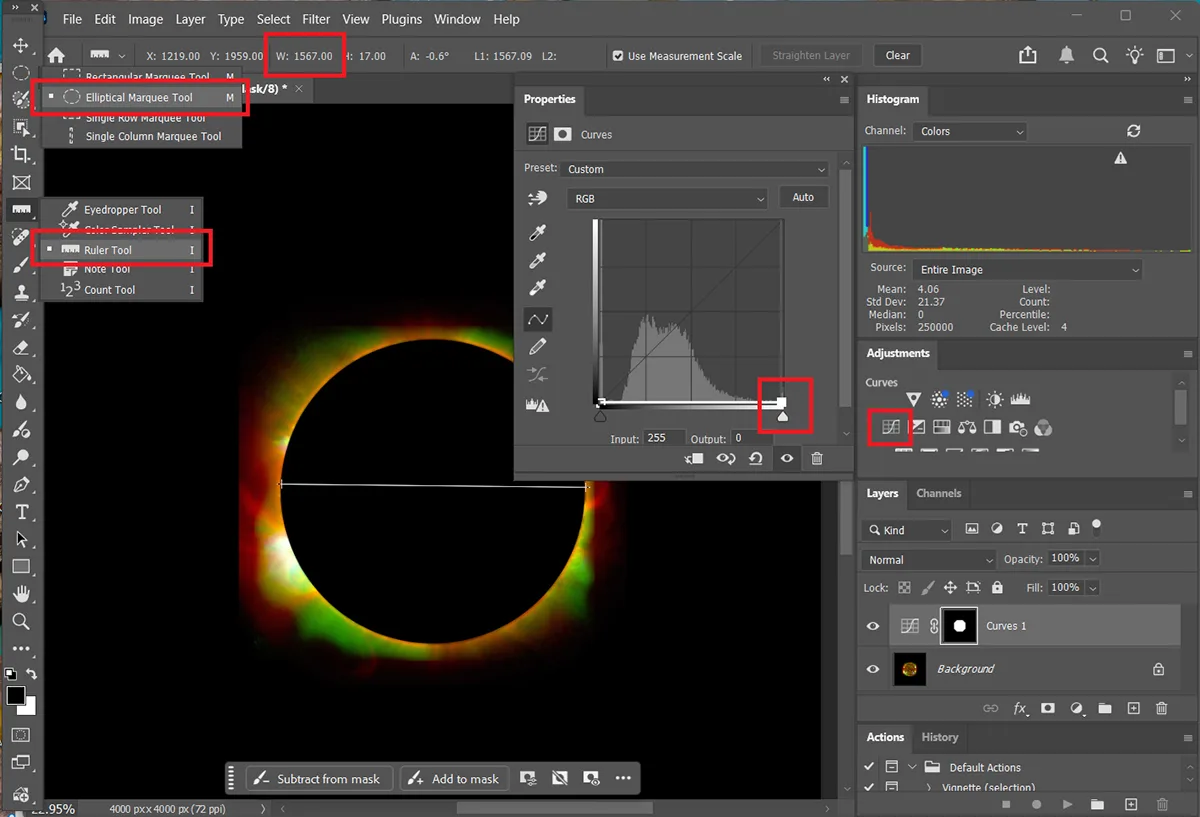
Use the Ruler tool to measure the Sun’s diameter in pixels. If you can’t see a ruler icon, it’s often nested under the Eyedropper tool.
Drag the ruler across the disc to measure its diameter. Select the Elliptical Marquee tool (highlighted, image below) > Style > Fixed Size and enter this diameter.
Position the selection so that it’s perfectly centred on the disc. With the disc selected, click Image > Adjustments > Curves.
Pull the top of the curve down to zero, turning the disc completely black (see image below).
You should now have an eclipsed Sun surrounded by a subdued corona.
Tubing totality
To create the neon-tube effect, the image needs to first be mirrored, then turned ‘inside out’.
Duplicate your layer (right-click > Duplicate Layer), then click Filter > Distort > Polar Coordinates > Polar to Rectangular.
Your corona will transition from circular to a horizontal line.
Click Edit > Transform > Flip Vertical, then apply Filter > Distort > Polar Coordinates > Rectangular to Polar.
This sequence effectively redirects the corona so that it points inward rather than outward.
Duplicate the layer again and set the blending mode to ‘Lighten’. Use Edit > Transform > Scale to resize the outer layer (see image below).
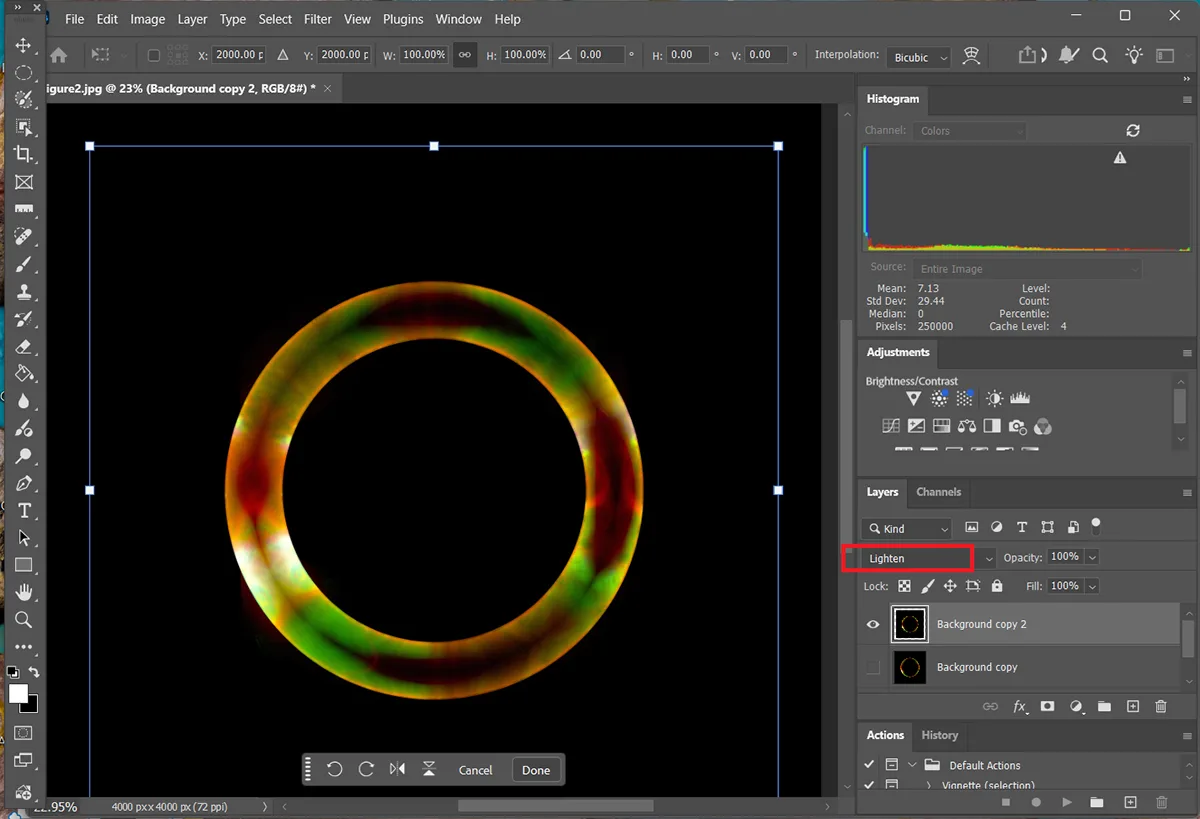
Holding Alt while dragging a corner maintains the layer’s aspect ratio.
Expand it until the result looks balanced, forming a glowing ring that encases the Sun like a neon tube. Once you’re happy, right-click and select ‘Flatten Image’.
If you want to make the colours look more like neon signage, use Image > Adjustments > Hue/Saturation.
Boost saturation by around 20 units, then gently move the Hue slider to the left. Greens will slide toward yellows, reds and magentas.
Adjust these settings gradually until the colours feel vibrant but not garish.
3 quick tips
Start with SDO data files that show interesting coronal brightness, contrast and colour variations
Use high-resolution SDO data (4,096 x 4,906 pixel) if possible. It will produce the finest detail and variation in your final image
Don’t be afraid to experiment with different hue and saturation levels
Send us your best images by emailing contactus@skyatnightmagazine.com