
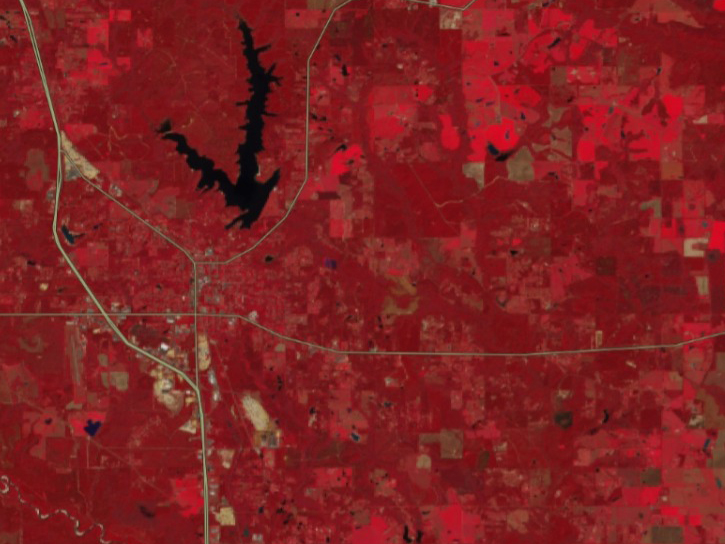
6. Find your area of interest, and if there isn’t imagery there for that day, select a date where there is imagery. Zoom into that area by clicking on the “+” zoom button (top left of the map) about four times or by using your scroll wheel/trackpad/two- fingered pinch zoom. The false color composite imagery will render for your area of interest. This composite allows you to visualize wavelengths that the human eye cannot see (such as short-wave infrared). In this band combination, burned areas appear brick red — due to the presence of ash, exposed dry soil, etc. — and water appears dark, making it easier to see lakes and flooded lands. Additional information is available for Sentinel-2 HLS false color imagery and Landsat HLS false color imagery.
7. Toggle on the Normalized Difference Vegetation Index (NDVI) layer which provides information on the presence and health of vegetation. NDVI can be used, for example, to detect drought, map the extent of burned areas, and assess fire impacts to vegetation. Additional information is available for the Sentinel-2 NDVI layer and the Landsat NDVI layer.
8. Toggle on the Normalized Difference Moisture Index (NDMI) layer, which provides information on the moisture content of fuels and their susceptibility to increased fire risk. This information is helpful for wildland fire management. Additional information is available for the Sentinel-2 NDMI layer and the Landsat NDMI layer.
9. Toggle on the Normalized Burn Ratio (NBR) layer. In wildland fire management applications, NBR data derived from satellite observations before and after a fire can be used to map the extent of the burned area and the magnitude of burn severity. Additional information is available for the Sentinel-2 NBR layer and the Landsat NBR layer.
10. Toggle on the Normalized Burn Ratio 2 (NBR2) layer; this is a variant of NBR that highlights water sensitivity in vegetation. In wildland fire management applications, this can potentially be used to assess post-fire vegetation conditions. Additional information is available for the Sentinel-2 NBR2 layer and the Landsat NBR2 layer.
Also included in the Harmonized Landsat Sentinel-2 Imagery menu is the ‘Customize HLS Bands’ option, which allows you to set your own band combination.
11. Click on the “+” next to Customize HLS Bands in the menu on the right to expand this section. Here you can select and load your desired HLS Sentinel and HLS Landsat band combinations using the layer picker to assign bands to the R(red), G(green), and B(blue) channels.
12. Find your area of interest and, if there isn’t imagery present for that day, select a date where there is imagery. If you are still not zoomed in far enough, you will see “Zoom Level Not Supported – Zoom In (+)” until you have zoomed in sufficiently for the layer to load. You will also see sets of translucent blue boxes (for Sentinel) and green boxes (Landsat) on the map to indicate areas where imagery is available.
13. To load your desired HLS Sentinel band combination, click on Sentinel – Custom Bands to access the 12 Sentinel bands and assign your desired band to R: G: B: and then click confirm